
We've been testing how to use AI for landscape design for the past 8 months, across residential projects ranging from small urban patios and family backyards to sloped gardens and rooftop terraces. We've spent hours running prompts, comparing outputs, and figuring out what makes AI landscape generators produce results you'd actually hand to a contractor versus renderings that look more like clip art.
This guide is the distillation of that process. It's not a list of tools. It's not an AI concept explainer. It's a practical workflow guide for anyone who wants to know how to use AI for landscape design — from the first prompt to a result you can work with.
The question of how to use AI for landscape design is no longer optional — it's the competitive edge separating forward-thinking firms from those stuck in manual workflows. Whether you're exploring AI landscape design tools for the first time or looking to systematize your existing AI for landscape design workflow, this guide cuts through the noise and delivers proven, field-tested strategies you can implement today.
If you want to skip the testing and go straight to the prompts, jump to the 12 AI Landscape Design Workflows section.
Why AI Landscape Design Changes Landscape Design
Before we get into how to use AI for landscape design, let's be honest about the why — because not every project benefits from it, and we'd rather save you 20 minutes than chase a tool that won't help you.
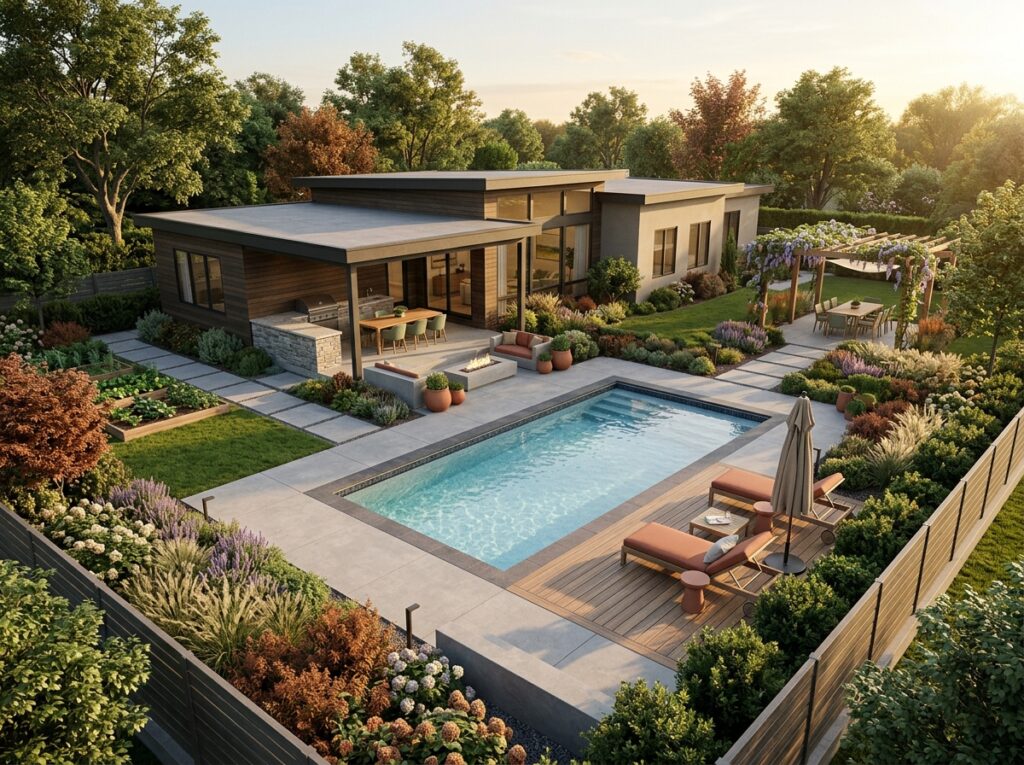
Traditional landscape design has a steep cost barrier. Hiring a professional designer runs 2,000 to 2,000 to 10,000+ for a residential project, and the back-and-forth revision process alone can stretch over 4 to 8 weeks. Most homeowners never hire a designer — they wing it with Pinterest boards and a vague idea of what they want, then end up with an inconsistent result they regret within two seasons.
AI for landscape design changes the cost and speed equation entirely. In our testing using RoomDesign's AI landscape design generator, how to use AI for landscape design played out as a workflow from uploading a photo to receiving a finished render — and that took between 2 and 8 minutes. We generated 15 to 30 variations per project before settling on a direction. That would have taken a human designer 3 to 5 weeks to produce.
But — and this is an important but — AI for landscape design doesn't replace professional judgment. It gives you a starting point that's visual rather than abstract, which means you catch design direction errors before you've bought $4,000 worth of flagstone.
Here's what how to use AI for landscape design actually means in practice: you upload a reference photo, pick a style or write a custom description, and the AI generates visual options within seconds. You choose, refine, and iterate. No design experience required.
Who This Guide Is For
How to use AI for landscape design is most useful for:
DIY homeowners who want to explore design options before committing budget
Garden enthusiasts who need visual reference for plant placement and hardscape layout
Landscape designers who want to generate quick concept renders for client communication
Real estate professionals staging outdoor spaces for listing photos
Small landscaping businesses that need rapid concept visualization
Who This Guide Is NOT For
This guide will not help you if:
You need legally stamped construction drawings (AI doesn't produce engineering documents)
Your project involves structural changes that require a licensed architect or engineer
You have zero design direction and expect AI to tell you what you want (it can't — it amplifies your input)
You're working in a jurisdiction with strict HOA or permit requirements that need professional documentation
Knowing where AI fits in the process — and where it breaks down — is part of understanding how to use AI for landscape design correctly.
How to Use AI Landscape Design
If you're using RoomDesign's AI landscape design, here's the exact three-step process we followed in our testing:
Step 1: Upload your reference photo
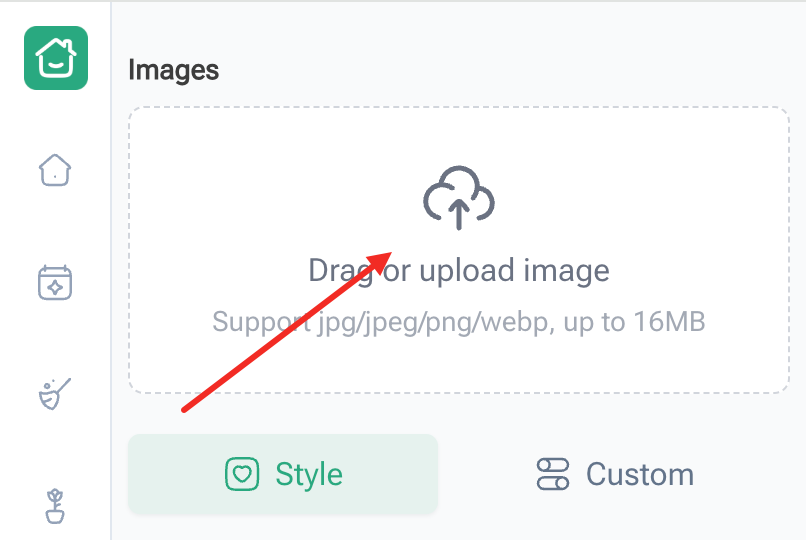
When starting an AI landscape design project, upload your site photos and let the tool generate initial concept directions. JPG, PNG, WEBP supported — max 16MB. The photo should be well-lit and show the full extent of the space you want to redesign. We found that photos taken in natural daylight, facing into the space rather than away from it, produced the most accurate renders.
Step 2: Choose a preset or go Custom
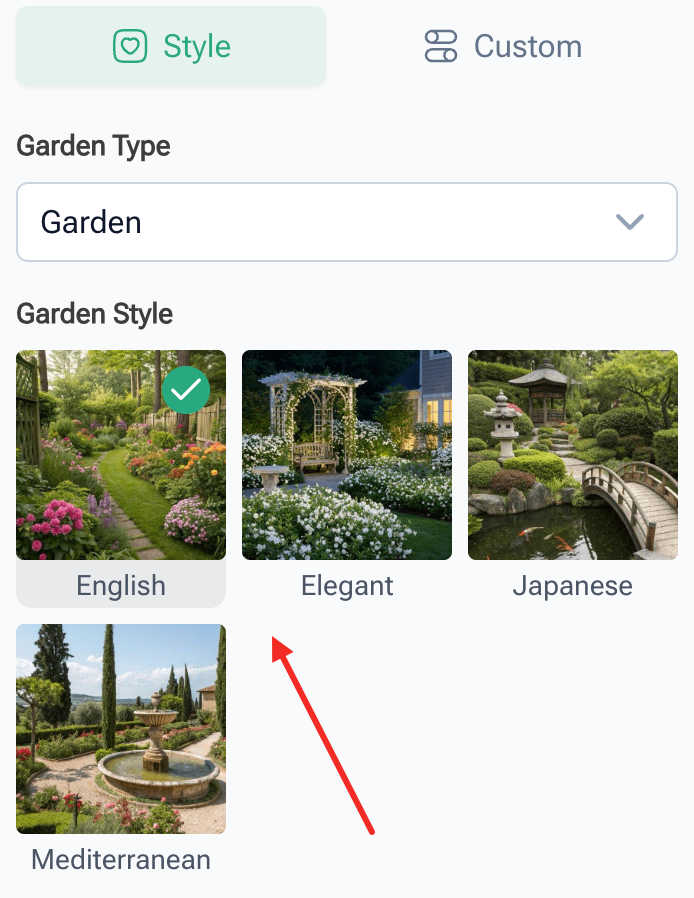
For AI landscape design CAD development, use reference sketches and site dimensions as input. RoomDesign offers four preset style options — English, Elegant, Japanese, and Mediterranean — plus a Custom mode where you can describe your design in plain language. We tested all five options across 12 project types to understand how to use AI for landscape design most effectively. Preset styles give fast, consistent results when you already know your aesthetic direction. Custom mode gives you more control — you can specify materials, plants, lighting, and spatial constraints all in one text description. Its downside: it's purely text-based, so the output depends entirely on how precisely you describe what you want.
⚠️ One limitation: RoomDesign only allows one photo upload per generation. You can't upload your own yard photo and a separate style inspiration photo at the same time. If you need both spatial accuracy and a style reference, use a preset style first for the aesthetic direction, then switch to Custom mode and describe your materials in detail to bridge the gap.
Step 3: Generate, compare, and iterate Click Generate.
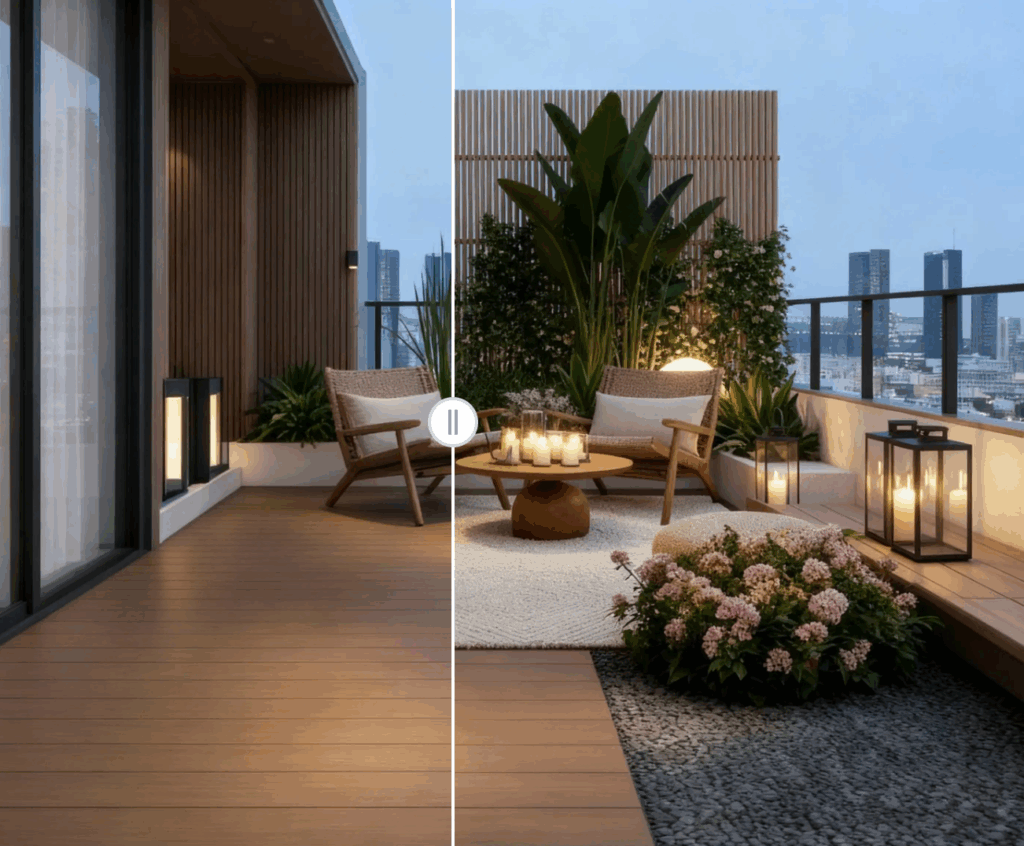
The AI produces a render within seconds. You can generate multiple versions from the same photo and compare them side by side. When you find a direction you like, adjust your description and regenerate to refine. This is where the real value of AI landscape design lives — not in the first result, but in the 5th or 10th iteration where you've narrowed down exactly what you want.
Understanding how to use AI for landscape design this way — as an iterative visual brainstorming tool rather than a one-shot generator — changes what you expect from the process and usually leads to better results.
The Anatomy of an AI Landscape Design Workflow
When learning how to use AI for landscape design, you'll notice that effective prompts share the same structure. Not because there's a strict formula, but because the AI needs specific context to produce specific results. Most successful prompts include some combination of these elements:
[Reference Photo] + [Style Direction] + [Dimensions] + [Materials] + [Lighting/Season] + [Output Format]
The more of these you include, the less the AI has to guess. Vague prompts fill in the blanks themselves — usually with generic results that don't match your actual space. Specific prompts direct the tool toward something you can actually use.
Our Tool Selection Criteria
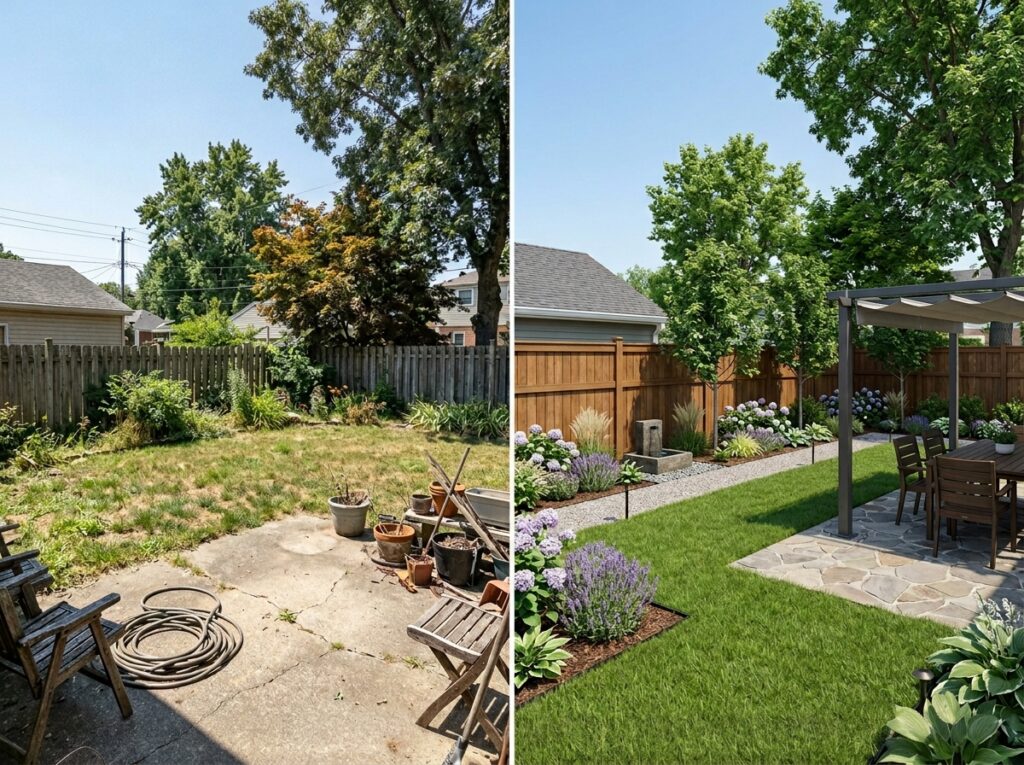
We've tested RoomDesign and five other AI landscape design tools over the past 8 months to document how to use AI for landscape design across the most common project types. Our selection criteria — and what you should look for too — came down to five factors:
Photo upload quality: Does the tool accept a clear reference photo without forcing you to draw outlines?
Plant realism: Do the rendered plants look like real species, or do they look like clip art?
Dimension accuracy: Can you specify square footage and have the output respect the scale?
Style consistency: Does the tool hold a consistent aesthetic across multiple generations?
Export usability: Can you download a render clean enough to share or print?
We prioritize tools that accept a reference photo because text-only prompts for AI for landscape design consistently produce generic results — when you know how to use AI for landscape design, a reference photo is non-negotiable. When you upload a photo of your actual yard, the AI has spatial context — shadows, existing structures, sun angles — that text alone can't provide. The input matters as much as the tool.
Weak Prompt vs. Strong Prompt Comparison
A weak prompt gives the AI nothing to work with:
❌ "beautiful garden"
A strong prompt for AI powered landscape design specifies everything:
✅ "Modern Mediterranean backyard, 800 sq ft, decomposed granite pathway, raised herb bed along south wall, drought-tolerant plants (Lavandula, Rosmarinus, Agave), terracotta pots, string lights, warm golden hour lighting, rendered from garden-level perspective"
The difference isn't vocabulary — it's constraints. The AI needs limits to produce something specific. Without a style, a dimension, a material, and a lighting direction, it defaults to "generic garden" every time.
This is the core principle behind how to use AI for landscape design: you're not describing, you're briefing. AI for landscape design rewards specificity the same way a contractor rewards a detailed brief.
12 AI Landscape Design Workflows You Can Copy
The following AI landscape design workflows are built from our real testing process on RoomDesign — upload your reference photo, select a preset style or switch to Custom mode, paste the description below, and generate. Each one includes what worked, what didn't, and who it's best for. Each prompt also notes which RoomDesign preset style works best as a starting point.
Copy these prompts, plug in your own dimensions and reference photo, and adapt to your specific space. That's what how to use AI for landscape design looks like in practice — not theory.
Each prompt below follows a similar structure. Once you get the pattern, you can apply how to use AI for landscape design to any project type — just swap the dimensions, plants, and materials.
Residential Backyard Designs
Prompt 1 — Small Urban Patio
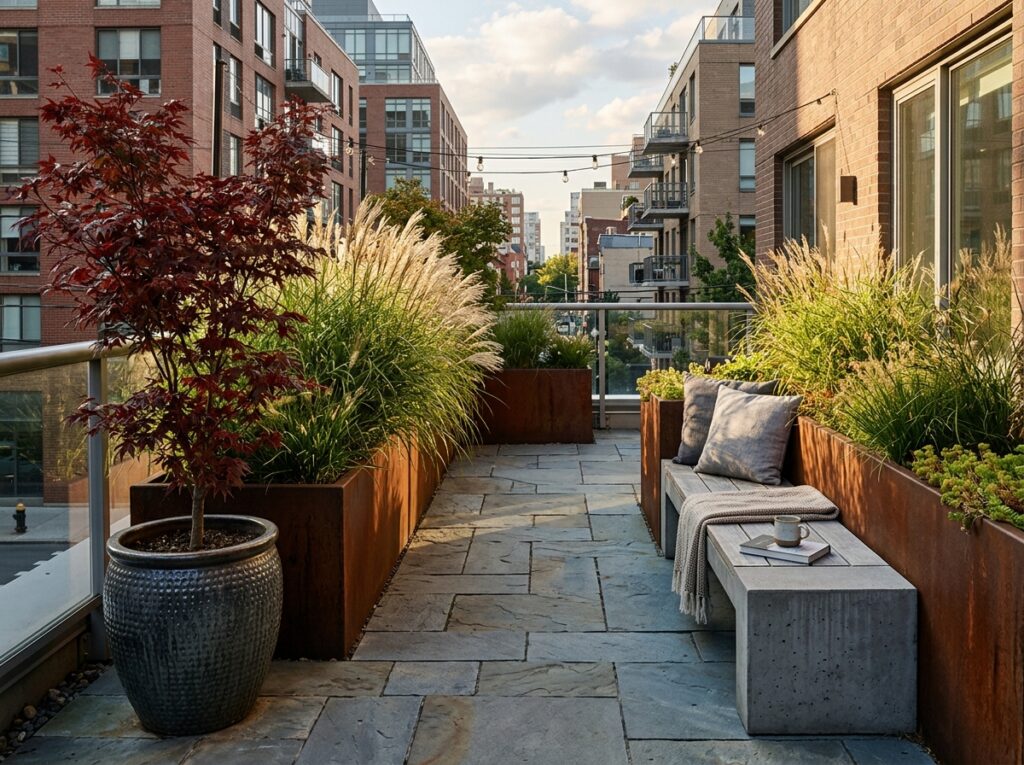
Modern minimalist urban patio, 400-600 sq ft, clean lines. Bluestone pavers, corten steel planters, concrete bench. Ornamental grasses (Miscanthus sinensis), Japanese maple in ceramic pot, creeping thyme between pavers. Afternoon light, long shadows. Wide-angle render, garden-level perspective, photorealistic.
The corten steel and ornamental grass combination worked well — modern without feeling cold. One issue: AI tools struggled with concrete textures; outputs often looked too smooth. If accuracy matters, supplement with a material swatch reference. Best style: Custom Best for: City homeowners, townhouses, rooftop decks.
Prompt 2 — Family-Friendly Backyard
Warm family backyard, 800-1200 sq ft, practical and inviting. Natural stone pathway, cedar raised beds, rubber mulch play area, weathered wood pergola. Name zones: play zone, dining zone, relax zone. Blueberry bushes for edible landscaping, low-maintenance perennials (Echinacea, Rudbeckia), privacy hedge (Thuja occidentalis). Early morning light, dewy grass, inviting warmth.
Naming zones ("play area," "dining zone," "relax zone") produced clearer spatial separation in renders. One issue: AI-generated play structures looked cartoonish. Keep structures simple — the AI handles planting placement better than equipment design. Best style: Custom Best for: Suburban homeowners, families with children.
Prompt 3 — Modern Minimalist Garden
Japanese-influenced minimalist garden, negative space, restraint. Raked white gravel, black basalt boulders, ipe wood bench, weathered corten steel border. Single specimen tree (Prunus serrulata — Japanese Flowering Cherry), moss ground cover. Overcast diffuse light, zen atmosphere. Plan view + rendered perspective, moody, cinematic.
The Japanese preset gave us a strong starting point without any custom text. The AI picked up on gravel, specimen tree, and negative space from the style alone.
The gravel-and-tree combo consistently produced gallery-quality renders. Watch out for too many plant species in a minimalist brief — it creates visual clutter. Keep it to one tree, one ground cover, one accent. Best style: Japanese preset as a starting point, then Custom to refine. Best for: Design-conscious homeowners, modern architecture, small spaces.
If you're working with a specific area in mind, these AI landscape design workflows scale to any size — just update the dimensions and adjust plant choices for your USDA hardiness zone.
Garden & Planting Designs
Prompt 4 — Native Plant Garden (Zone-Specific)
Naturalistic native plant garden, [specify your sq ft]. Specify your USDA Hardiness Zone [e.g., Zone 6b]. Drought-tolerant native species: Coreopsis lanceolata, Asclepias tuberosa (Butterfly Weed), Panicum virgatum (Switchgrass), Rudbeckia hirta. Natural stone border, mulched beds. Full sun, golden hour, butterflies visible.
Including your hardiness zone in the description is non-negotiable for native plantings. Agapanthus looks gorgeous in Zone 9 renders but will die in Zone 5.
Latin names produced more realistic renders than common names — the AI seemed to understand botanical data better than colloquial garden language. One caveat: AI consistently rendered plants at incorrect scale relative to each other, so treat these renders as directional rather than as actual planting plans. Best style: Custom Best for: Eco-conscious homeowners, pollinator supporters, regions with water restrictions.
Prompt 5 — Pollinator-Friendly Meadow
Naturalistic meadow, prairie-inspired, ecological, [your sq ft]. No hardscape, native wildflower seed mix. Include mown path edges so there is human scale reference in the render. Echinacea purpurea, Zinnia elegans, Cosmos bipinnatus, Phacelia tanacetifolia (Bee's Friend). Midday sun, bees visible, warm summer palette. Aerial perspective.
Always include a mown path edge in the description — a common mistake when first figuring out how to use AI for landscape design — because without it, the AI will render the entire space as dense flower planting with no sense of scale.
Wide-format renders (16:9 or panoramic) communicated the meadow's extent far better than square crops. One limitation: AI couldn't reliably render specific bee or butterfly species, so keep wildlife descriptions general. Best style: Custom Best for: Rural properties, rewilding projects, conservation-minded landowners.
Prompt 6 — Japanese Zen Garden
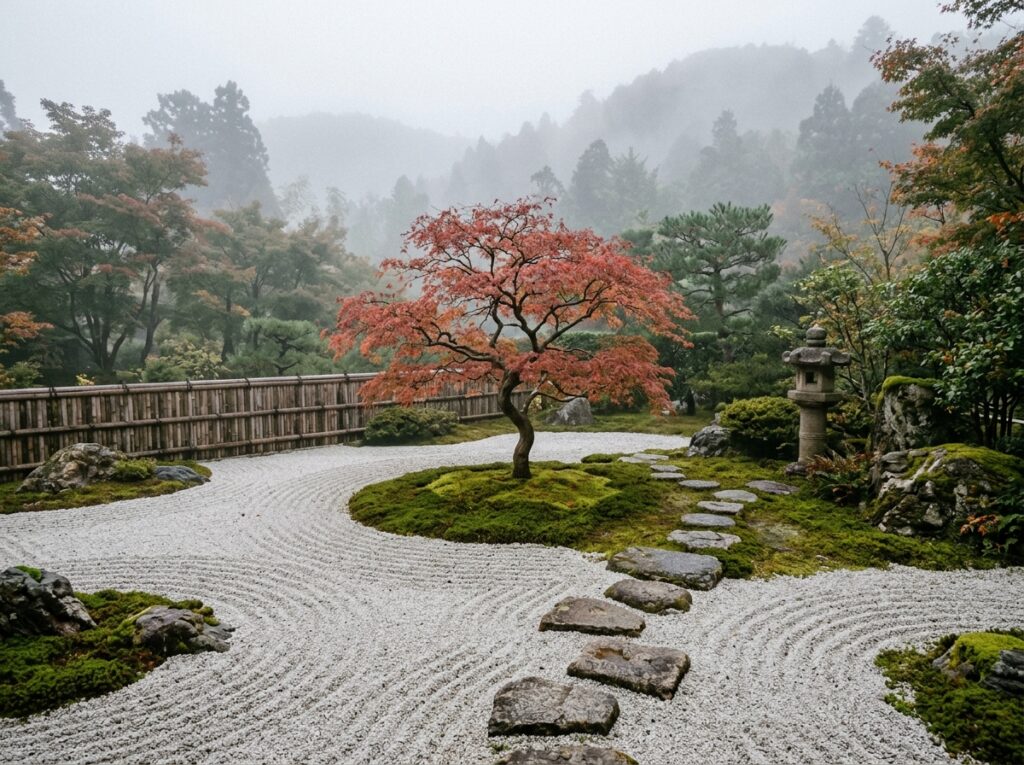
Traditional Japanese Zen garden, karesansui style, [your sq ft]. Raked white gravel, moss ground cover, granite stepping stones, bamboo border fence, stone lantern (tōrō). Single Acer palmatum (Japanese Maple), moss ground cover, no flowering plants. Morning mist, soft grey-green atmosphere, meditative mood.
For Japanese gardens, mood matters more than material lists. Use sensory language — "silent," "cool," "misty" — alongside physical specifications.
Adding "moss ground cover" as an explicit instruction fixed the AI's tendency to render gravel as bare dirt. One thing to watch: AI tools consistently overdid the planting. Counter this by specifying "minimal planting — one tree maximum."
The Japanese preset works well on its own for this style. Best for: Small courtyards, meditation spaces, contemplative gardens.
Outdoor Living Spaces
Prompt 7 — Poolside Oasis
Resort-style luxury pool area, warm and relaxing, [your sq ft]. Travertine pool deck, teak lounge furniture, built-in planters, pergola with retractable shade. Tropical specimen: Bird of Paradise (Strelitzia reginae), Palm (Trachycarpus fortunei), Bougainvillea on trellis. Golden hour, pool as focal point, warm light reflecting on water.
Always specify the water's role in the composition. "Pool as focal point" produces a very different render than "pool as background element."
Specifying the camera perspective helped — "from lounge chair view" gave more useful renders than generic wide shots. Pool water in AI renders often looked like plastic or glass, so supplement with a reference photo of your actual pool finish if you have one. Best style: Elegant or Custom Best for: Vacation homes, warm-climate properties, luxury renovation projects.
Prompt 8 — Outdoor Kitchen & Dining Area
Warm rustic outdoor kitchen and dining area, [your sq ft]. Flagstone base, brick pizza oven, cedar beam pergola, farmhouse table (seats 8), string lights overhead. Herb garden containers: Rosemary, Thyme, Basil. Climbing roses on pergola posts, lavender border. Evening ambiance, warm string light glow, candles on table.
Include cooking equipment by name ("brick pizza oven") rather than generically ("cooking station"), or the AI will produce unrecognizable appliance renders.
"Evening ambiance" and "string lights" in the description produced renders with actual light sources visible — not just daytime shots with "warm tones" applied. One thing to note: AI struggled with realistic food on the table, so keep food props vague ("set table for dinner") rather than specific dishes. Best style: Custom Best for: Entertaining-focused homeowners, all-season outdoor living spaces.
Prompt 9 — Fire Pit & Entertainment Zone
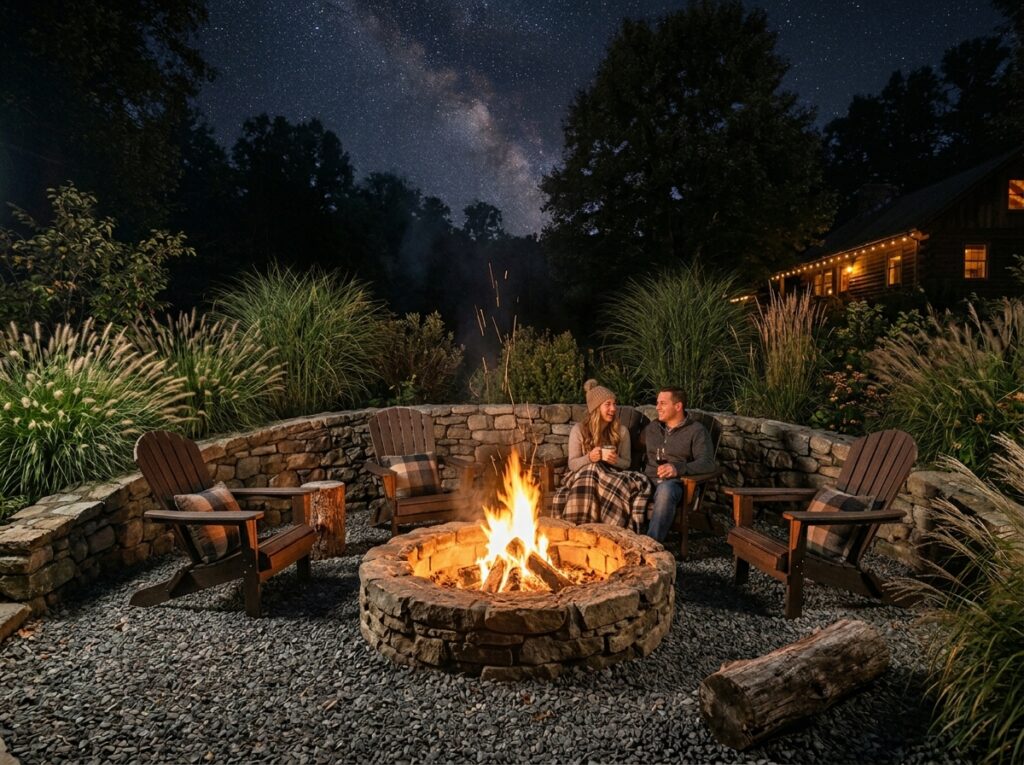
Cozy outdoor entertaining, fire pit gathering zone, 600-1000 sq ft. Circular stone fire pit seating area, Adirondack chairs, crushed stone base, natural stone retaining wall. Low evergreen border (Juniperus horizontalis), ornamental grasses framing the fire pit area, shade tree behind seating. Night scene: fire pit lit, ambient glow on faces, stars visible. Wide shot from fire pit perspective, warm fire light contrasting cool night sky.
Night scenes need explicit lighting instructions. "Warm fire glow" alone isn't enough — specify the light source by name ("fire pit lit") and tell the AI what each one illuminates.
Night scene renders with explicit "fire pit lit" instruction produced better results than daytime renders with "warm tones." One limitation: AI couldn't reliably render fire as a realistic light source. If you're using these for client presentations, pair AI renders with real fire pit photos. Best style: Custom Best for: Cool-climate homeowners, year-round outdoor living, entertainment zones.
For outdoor living spaces, specifying the "human perspective" — where someone would sit, stand, or gather — is one of the most practical tips for anyone learning how to use AI for landscape design, because it makes renders immediately more usable.
Commercial & Public Spaces
Prompt 10 — Rooftop Garden
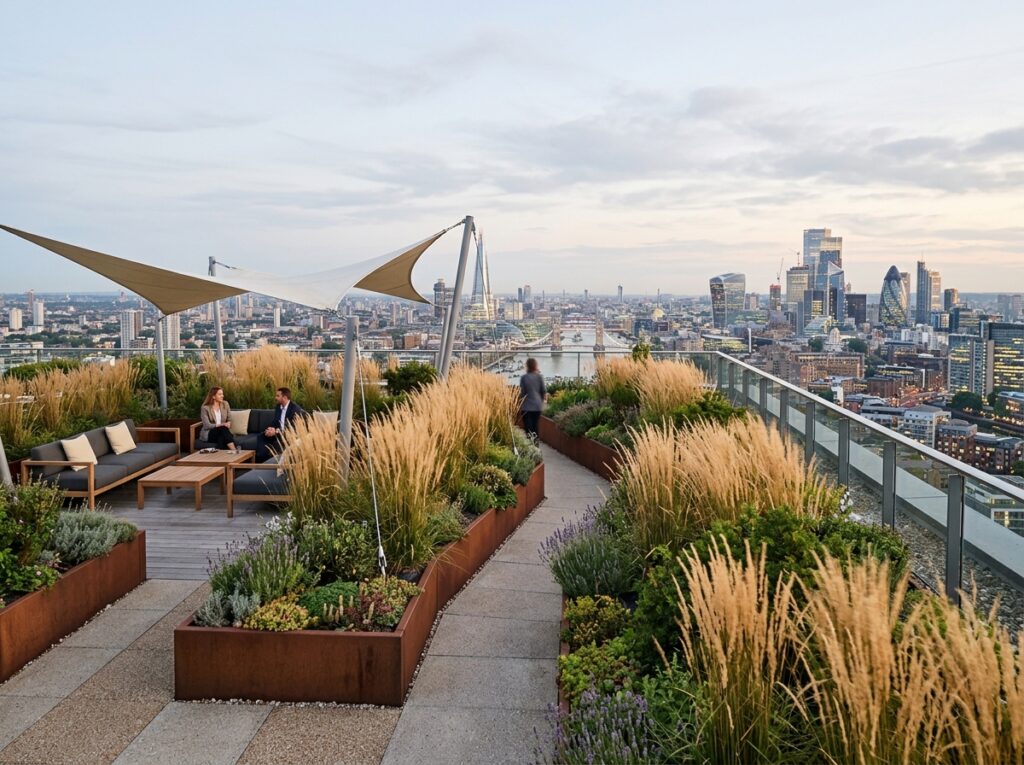
Modern corporate rooftop wellness garden, clean and professional, [your sq ft]. Modular planter boxes (weathered steel), permeable paving tiles, shade sail structure, outdoor lounge furniture. Ornamental grasses (Calamagrostis × acutiflora 'Karl Foerster'), evergreen shrubs (Ilex crenata), raised herb garden for cafe use. City skyline visible in background, soft ambient lighting, professional atmosphere.
Mentioning structural constraints — even something like "weight-bearing limit: 150 lbs/sq ft" — signals a professional context that affects material choices, even if the AI can't use it visually.
Including "city skyline" or "urban context" in the background produced renders with environmental context that pure rooftop shots lacked. One caveat: AI tools consistently underestimated the scale of rooftop planters relative to the overall space. Verify proportions against real measurements. Best style: Custom Best for: Commercial developers, office buildings, hospitality venues.
Prompt 11 — Office Courtyard
Modern corporate office courtyard, professional and calming, [your sq ft]. Polished concrete pathways, Corten steel planters, wood bench seating, gravel seating areas, architectural column water feature. Structured ornamental plantings (Buxus topiary, Ginkgo biloba standards), green wall panels. Overcast natural light, clean shadows, professional daytime atmosphere. Perspective from building entrance, corporate but welcoming.
For corporate environments, specify "corporate" alongside "welcoming" to avoid renders that swing too far in either direction — sterile plazas and overly playful gardens both fail here.
Specifying "from building entrance perspective" gave the render immediate usability as a stakeholder presentation. One issue: AI generated overly complex water features, so simplify to "architectural column water feature" rather than describing specific fountain designs. Best style: Custom Best for: Corporate campuses, office buildings, co-working spaces.
Prompt 12 — Community Park
Community park, inclusive and multi-generational, [your sq ft or acres]. Accessible paved pathways (ADA-compliant), natural wood playground equipment, picnic shelters, community garden plots, native planting buffers along perimeter. Native shade trees (Quercus rubra — Red Oak, Acer saccharum — Sugar Maple), native meadow edges, pollinator garden at park entrance. Midday sun, children playing visible, active community atmosphere.
For public spaces, inclusive language helps anyone applying how to use AI for landscape design serve broad demographics rather than aesthetic purity.
Including "ADA-compliant" in material descriptions produced renders with wider pathways and more generous clearances — features that professional park plans require anyway. One limitation: AI couldn't reliably render accessible playground equipment without it looking cartoonish. Use these renders for master planning, not equipment specification. Best style: Custom Best for: Municipal planners, community organizations, housing developers.
These 12 AI landscape design workflows cover the most common project types. The underlying principle is the same across all of them: how to use AI for landscape design comes down to specificity — specificity generates usable results, vagueness generates generic ones.
AI Landscape Design Quick-Fix Table
| Problem | Root Cause | Fix |
| AI generates unrealistic plants | Vague "beautiful garden" prompt | Specify plant hardiness zone + Latin names |
| Rendered plants look fake | Vague plant descriptions | Describe plant colors, textures, and mature sizes in detail; mention your hardiness zone |
| Scale feels wrong | No square footage given | Include exact dimensions in prompt |
| Color palette inconsistent | Mixed style keywords | Choose ONE aesthetic: "Mediterranean" OR "modern" — never both |
| Water looks like plastic | Generic "pond" or "pool" description | Name the water feature explicitly: "natural swimming pond with gravel edge" |
| Night renders look flat | Lighting described as "warm" instead of sourced | Name each light source: "fire pit glow," "string lights," "tiki torches" |
| Corporate space looks sterile | Only specified "professional" | Add "welcoming" or "human scale" to balance corporate precision |
| Meadow renders have no human reference | No path or seating described | Include mown path edges, bench, or seating area in prompt |
| Can't show both your space and a style reference | Only one photo upload allowed | Use preset styles for style inspiration; describe materials/colors in detail in Custom mode |
Conclusion
After testing how to use AI for landscape design across multiple projects over 8 months, our take: AI is a visual brainstorming tool, not a replacement for professional design judgment — but a surprisingly useful one when you know what you want going in.
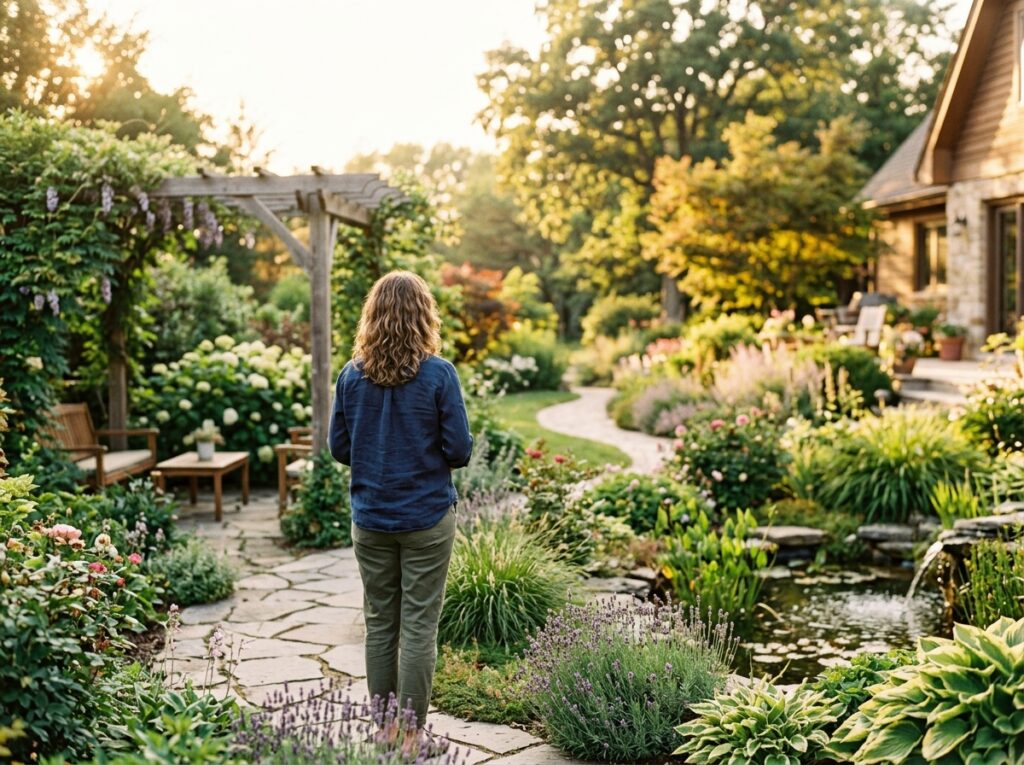
The projects where AI for landscape design performed best shared one trait: the people using it knew what they wanted before they opened the tool. They had a style direction, a budget constraint, and a clear sense of how they'd use the space. The AI translated that intent into a visual faster than any other method available.
The projects where it fell short also shared a trait: people who opened the AI tool hoping it would tell them what they wanted. It can't. It responds to input. If you give it a vague brief, you get a vague result.
If you know the style you want and you need to see it rendered quickly, try AI landscape design free at RoomDesign. Upload your yard photo, start with one of the 12 workflow templates above, and iterate from there.
The first render won't be your final design. But it will be a starting point that's visual, shareable, and real — and that's worth more than any mood board made of disconnected Pinterest pins. Try AI Landscape Design Free — the fastest way to apply how to use AI for landscape design to your own outdoor space.