Convert Image to DXF

Wedding Seating Chart Maker

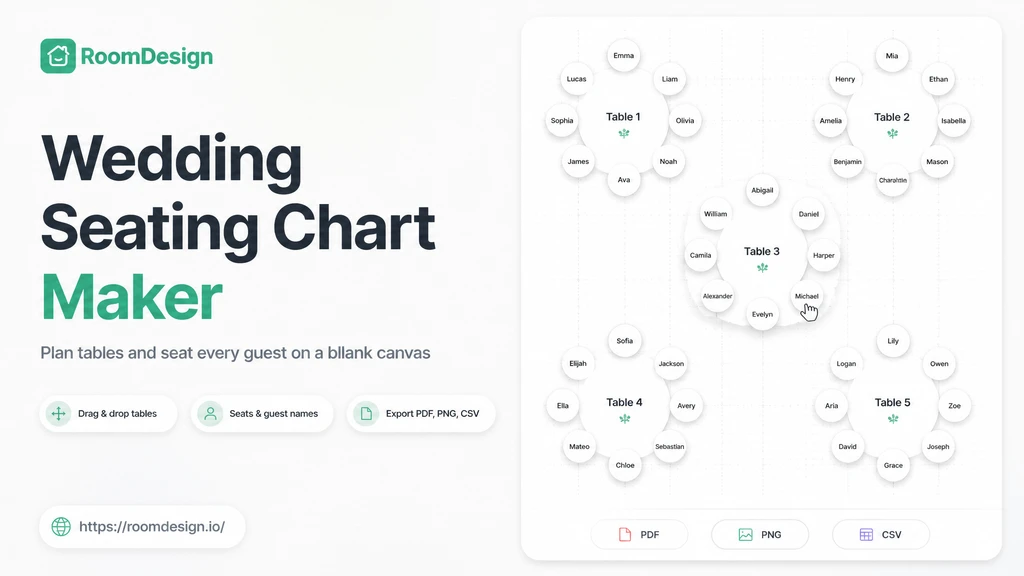
RoomDesign turns a list of names into a seating plan, so a late RSVP is a quick swap rather than a redraw.

Wedding Seating Chart Maker - Free Drag and Drop Planner

RoomDesign's Wedding Seating Chart Maker opens with an editable reception layout, seats each guest by name, and exports the finished chart as a PDF, PNG, or CSV list.

Wedding Seating Chart Maker - Free Drag and Drop Planner

What Is Wedding Seating Chart Maker?

Wedding Seating Chart Maker on RoomDesign opens with an editable reception layout; add your guest list to begin. Drag tables into the arrangement you want, set how many seats each one holds, and put a name on every seat. For the rest of the space, Floor Plan Designer and AI Room Planner cover other work.

What Is Wedding Seating Chart Maker?

Why a Seating Chart in a Spreadsheet Stops Working

A spreadsheet tracks rows, so nothing in it tells you which guests still have no table or whether a name got pasted twice. The chart only becomes real once the tables are laid out and the seats are filled in. Wedding Seating Chart Maker on RoomDesign keeps both on one screen.

Why a Seating Chart in a Spreadsheet Stops Working

Key Features of Wedding Seating Chart Maker on RoomDesign

  • Add Tables to the Canvas

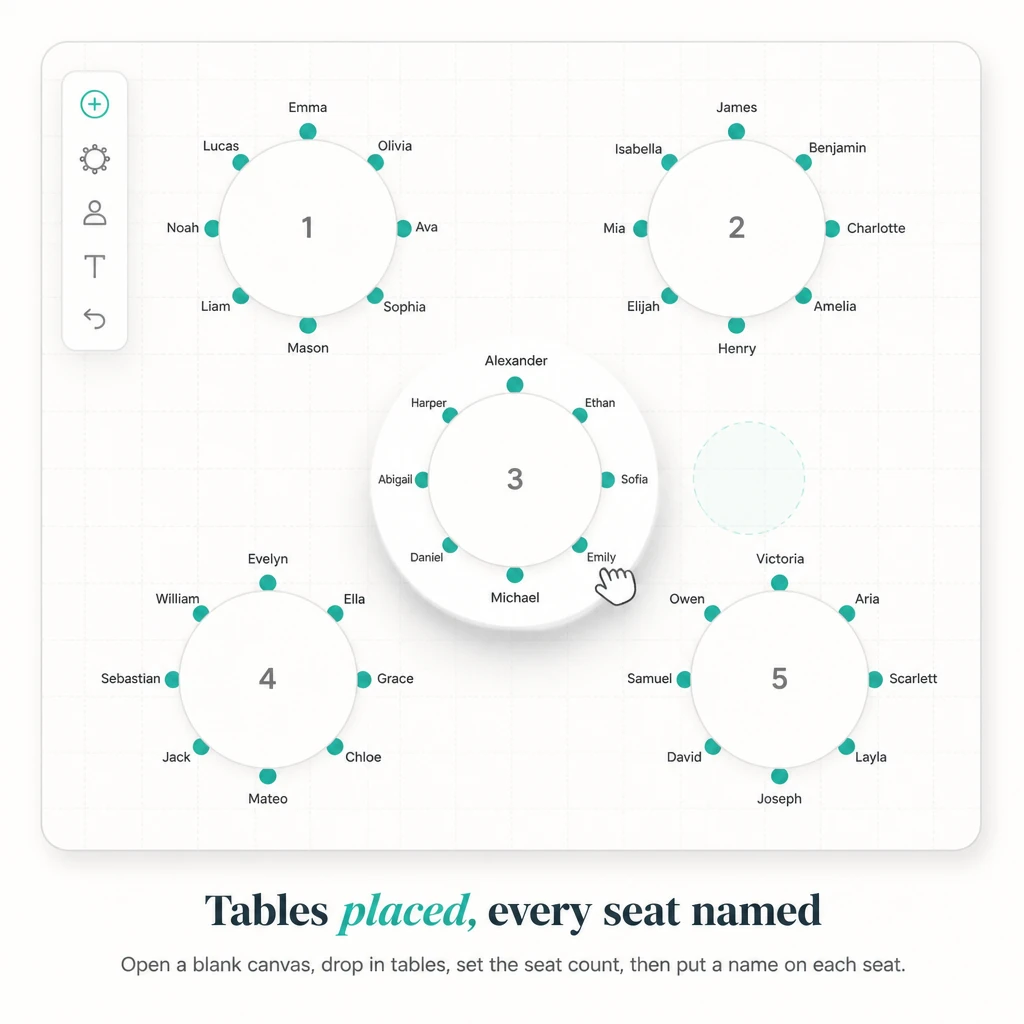
    Start with the editable reception layout or choose a blank canvas, add as many tables as the reception needs, then drag them into the arrangement you want to see first.

  • Set Seats and Add Names

    Give each table its own seat count, then type a guest name onto every seat, so you can see at a glance who is still waiting for a place.

  • Export PDF, PNG, and CSV

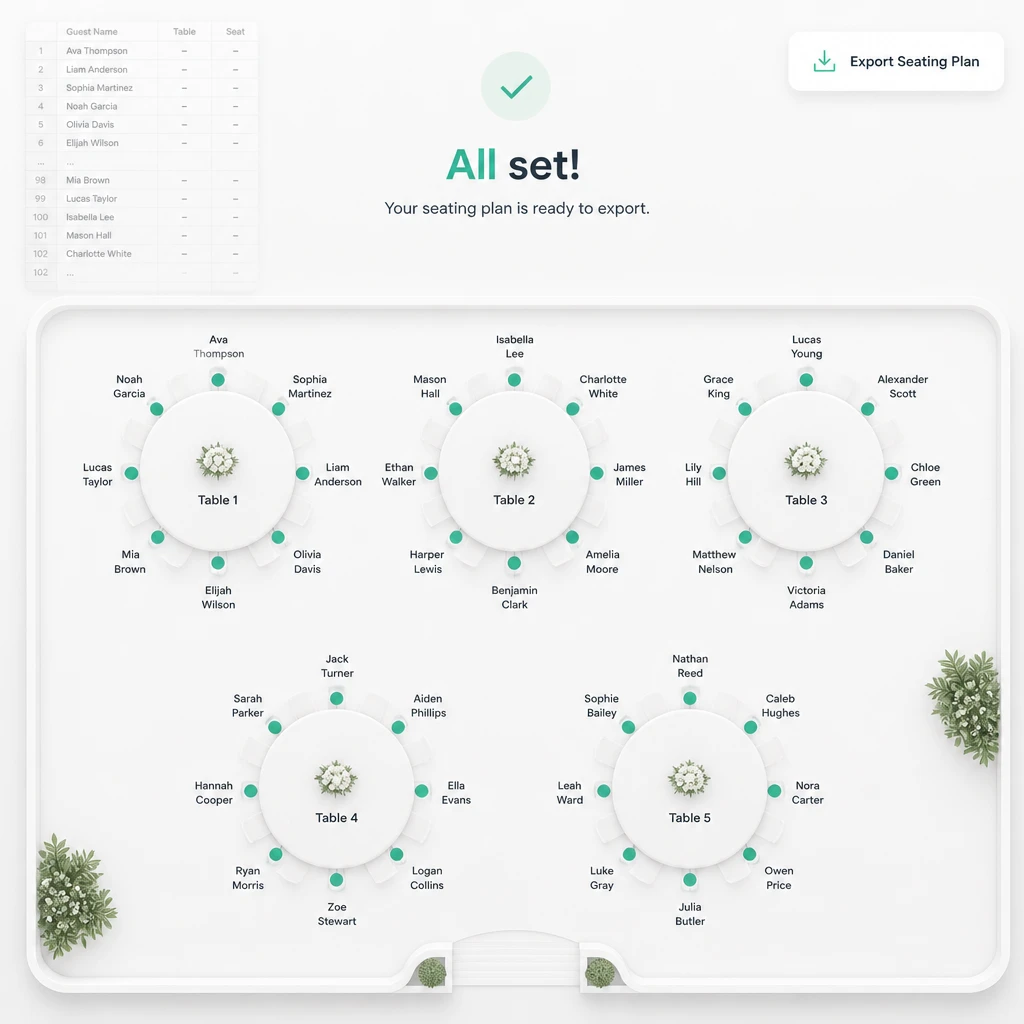
    Save the finished chart as a PDF to print out, a PNG to share with family, or a CSV list to hand the caterer before the count is locked.

Wedding Seating Chart Maker Use Cases

Wedding Seating Chart Maker on RoomDesign is built for the last fortnight before a wedding, so the three situations below are about getting names onto tables before a deadline.

Lay Out a Wedding Reception

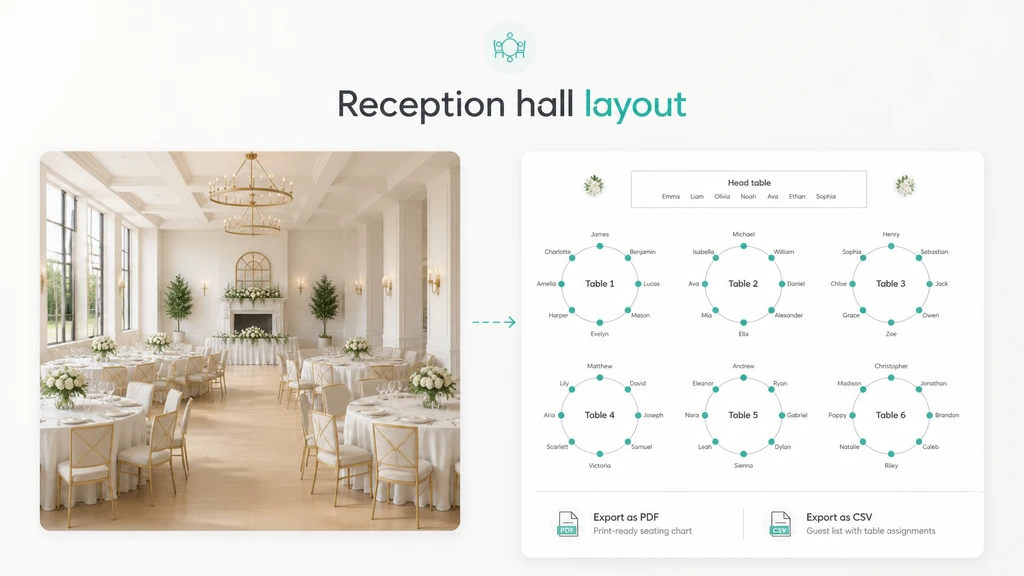
Bring the confirmed guests onto the canvas, give every table its own seat count, and settle the arrangement while the last RSVPs are arriving.

Lay Out a Wedding Reception

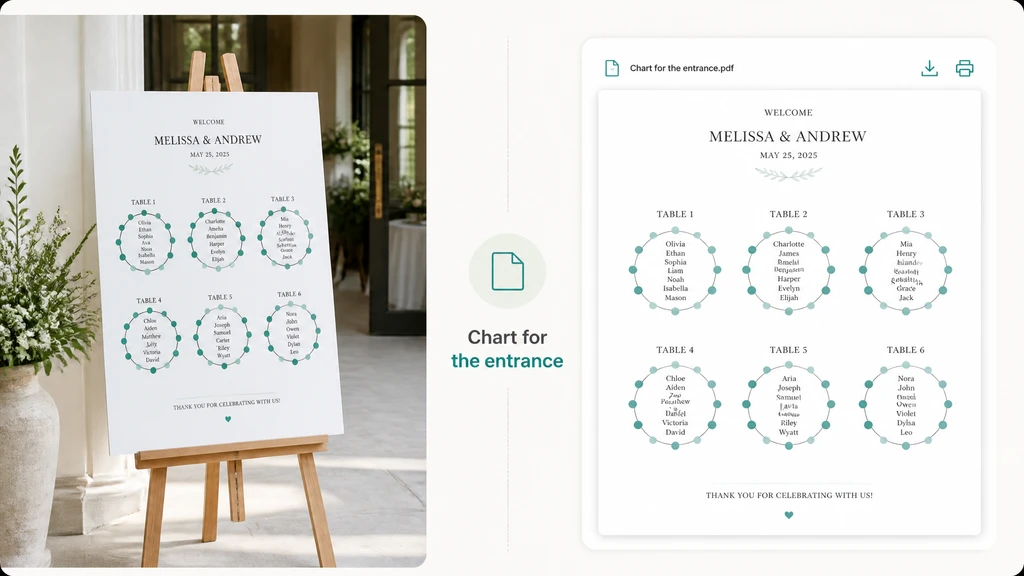
Export the finished arrangement as a PDF so guests can find their own table on arrival without asking staff where they are meant to sit down.

Print a Chart for the Door

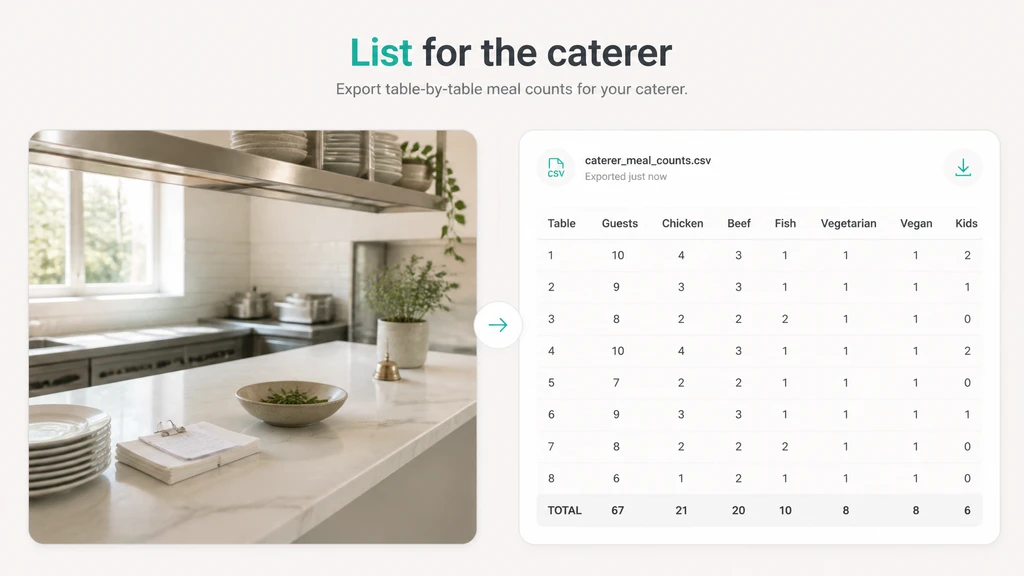
Export a List for the Caterer

A CSV of the table assignments gives the kitchen a meal count for each table, which is easier to work from than a picture of the whole layout.

Export a List for the Caterer

Build a Wedding Seating Chart

  1. Step 1: Add Your Tables

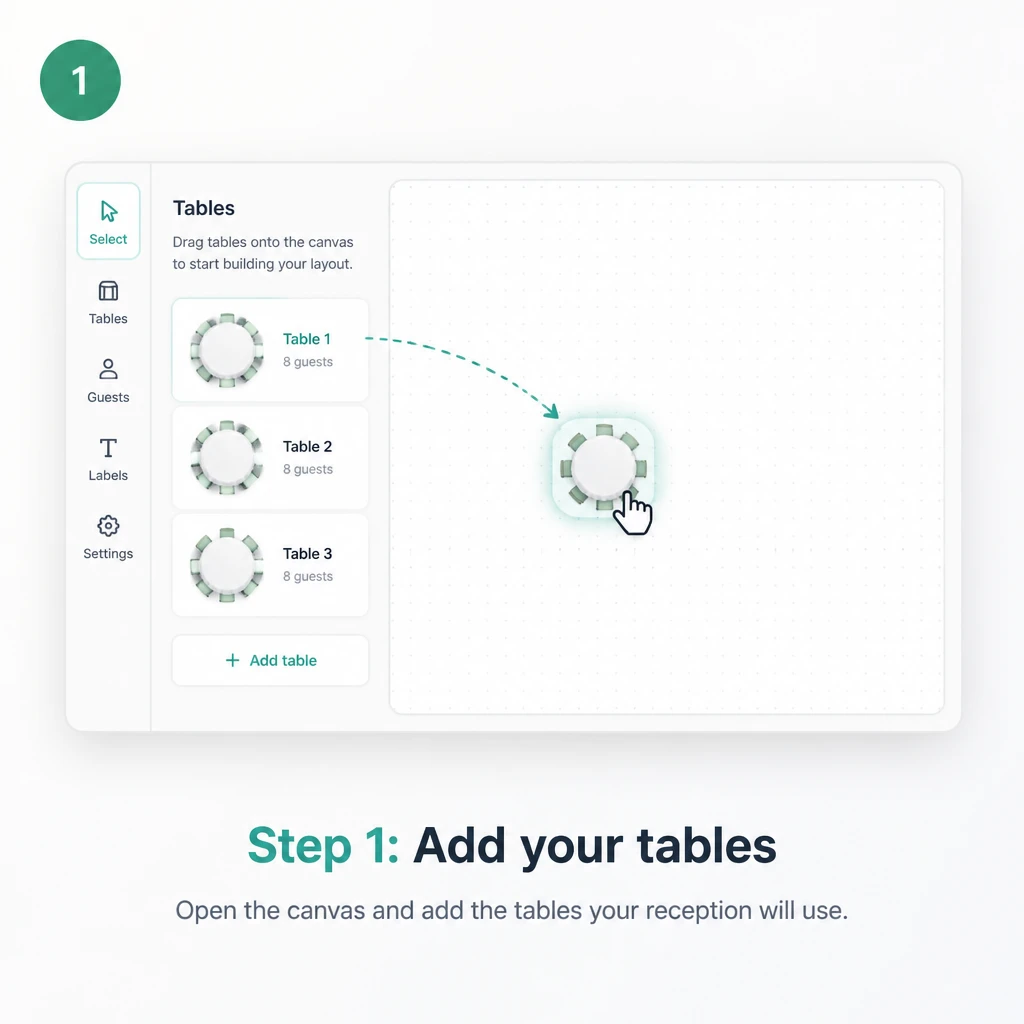
    Step 1: Add Your Tables

    Open the canvas and add every table the reception will use, then drag them into the arrangement you have in mind for the evening ahead.

  2. Step 2: Set Seats and Names

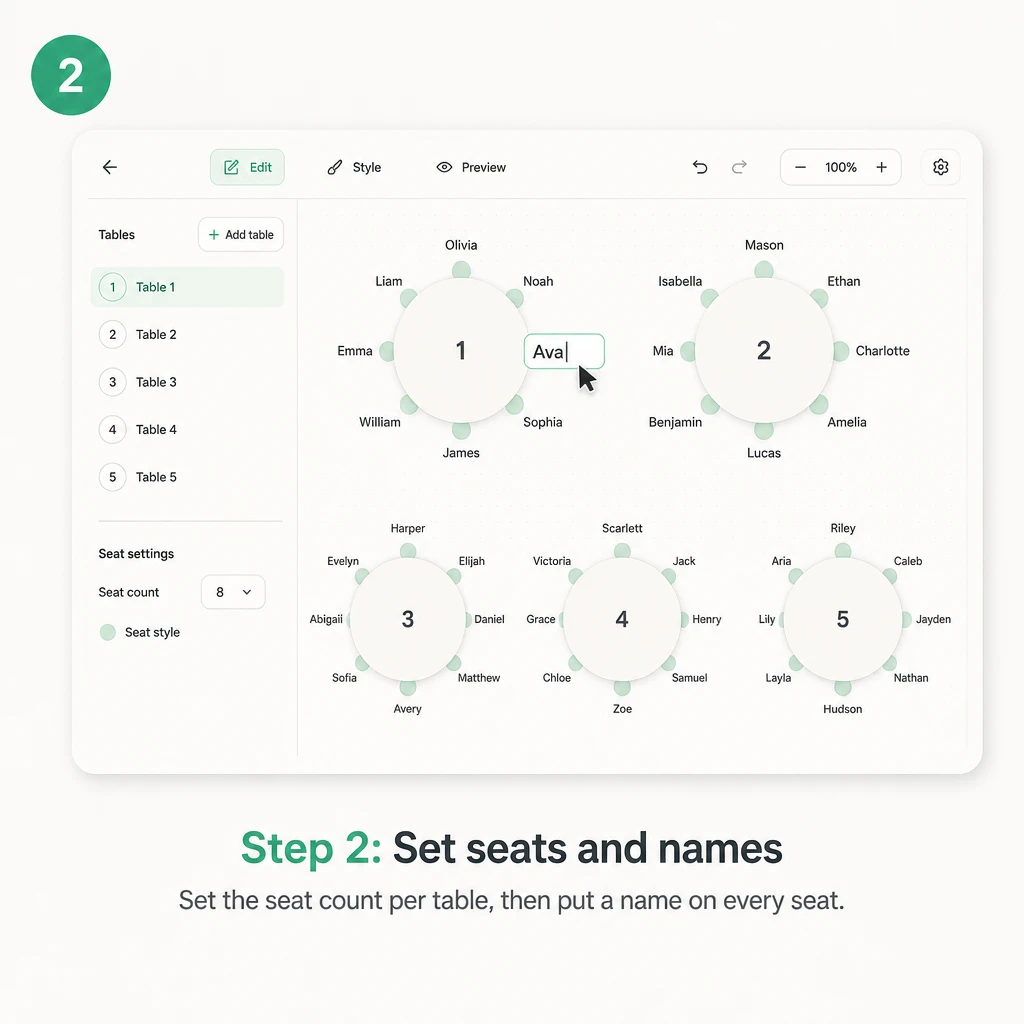
    Step 2: Set Seats and Names

    Set the seat count on each table and put a name on every seat, adding late replies as they arrive rather than saving them all for later.

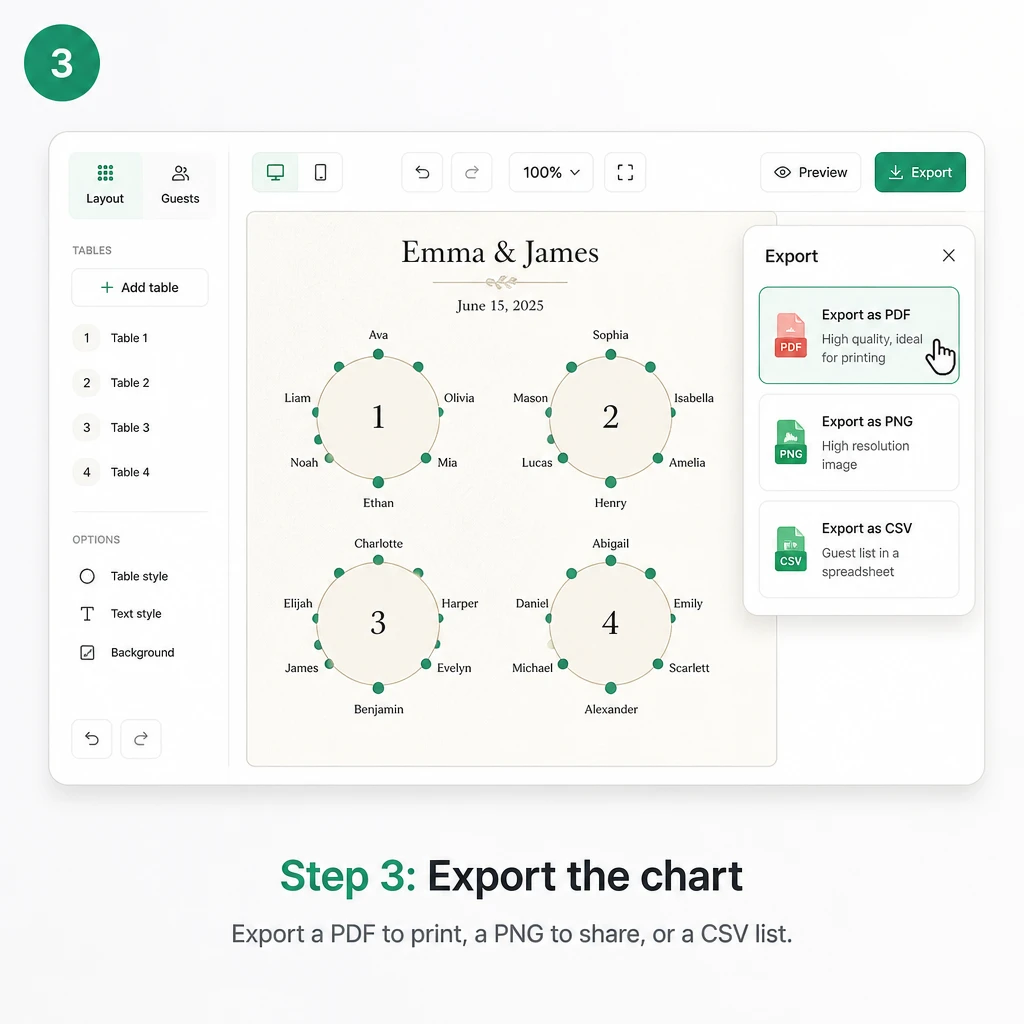
  3. Step 3: Export the Chart

    Step 3: Export the Chart

    Export a PDF to print out for the door, a PNG to share with family, or a CSV list to hand to the caterer before the final count is due.

Ready to Turn Your Guest List Into a Seating Chart?

RoomDesign opens with an editable reception layout that you can adapt or replace with a blank canvas. Add the tables, set the seat count on each one, put a name on every seat, and export what you need.

What Users Say About Wedding Seating Chart Maker

Hannah Whitfield

Bride

“We started with a spreadsheet and a guest list nobody could picture. Wedding Seating Chart Maker let us drag the tables first and then put names onto the seats, so we could finally see who was still left without a place. We exported a PDF for the door and a CSV for the caterer and stopped arguing about rows.”

Tomas Berglund

Venue Coordinator

“I manage events at a country house and couples usually send me a spreadsheet I have to read twice. Wedding Seating Chart Maker hands me a chart with the tables laid out and the names already sitting on them, so I can answer a question without opening anything else. The CSV goes to the kitchen the same day.”

Priyanka Deshmukh

Wedding Planner

“I plan around thirty weddings a year and the final fortnight is always seating. Wedding Seating Chart Maker is quick enough that I can redo a whole chart when a client changes their mind, and the export means I hand over a file instead of a screenshot. Nobody has to retype names into a spreadsheet again.”

Owen Fitzgerald

Groom

“We were working from a spreadsheet until we realised nobody could picture where they were sitting. Wedding Seating Chart Maker put the tables on a canvas and let us drop a name onto each seat, and my wife and I settled three arguments in one sitting rather than a week. Then we exported the PDF and we were done.”

Camille Rousseau

Catering Manager

“Catering numbers depend on knowing how many guests sit at each table, not just the total. Wedding Seating Chart Maker gives me a CSV of the assignments, so I can count meals per table before the kitchen plans its service. That file replaced a printed chart I used to translate by hand every single time.”

Diego Salazar

Event Designer

“I style events and I am usually handed a seating chart that exists only as rows in a spreadsheet. Wedding Seating Chart Maker lets me drag the tables into the arrangement I want, put names on the seats, and export a PDF I can actually show a client. It takes an evening rather than a week of back and forth.”

Frequently Asked Questions About Wedding Seating Chart Maker

Eight at a table is the comfortable figure for dinner conversation, and ten is roughly the practical maximum before one table splits into two separate conversations. Set the seat count on a table before you place names on it, so nothing has to be shifted once the names are in and the chart has been exported.

Number or name tables in the order guests will meet them rather than the order you built them, because a chart read at the door works best as a sequence from the entrance inwards. Keep the labels short, use the same wording on the printed chart, and do not renumber a table once guests have been told.

RoomDesign lets you start without creating an account, so you can open the canvas and begin straight away. An account is the safer route if you want to save a chart and come back to it, because anything held only in the browser session can be lost when that data is cleared. Export the chart before you close it.

Two guests with the same name are easy to tell apart on a seating chart by adding a short qualifier, such as a surname initial, a relation, or a side of the family. Do that before the chart is exported, since a place card or a table list with two identical entries is the one thing a venue cannot resolve alone.

Export a PDF for anything that gets printed, a PNG or JPG for sharing on a screen, and a CSV or spreadsheet for the caterer's meal counts. Send the venue the PDF so the arrangement is visible, and the CSV so the kitchen can count per table without retyping anything. Keep the editable version so the last RSVP change does not force a rebuild.

A guest list usually carries names, and sometimes a note about who should not be seated together, so treat it like any other document about the wedding. Review the current RoomDesign privacy terms before uploading a list, and remove anything the seating work does not need, such as phone numbers or an address.

There is no fixed cap on guests or tables, so a small dinner and a large reception work the same way. What slows a big chart down is not the number of names but the arrangement itself, so build the tables first, seat the guests with firm requirements, and fill the rest in once the last replies settle.