Convert Image to DXF

Floor Plan Creator

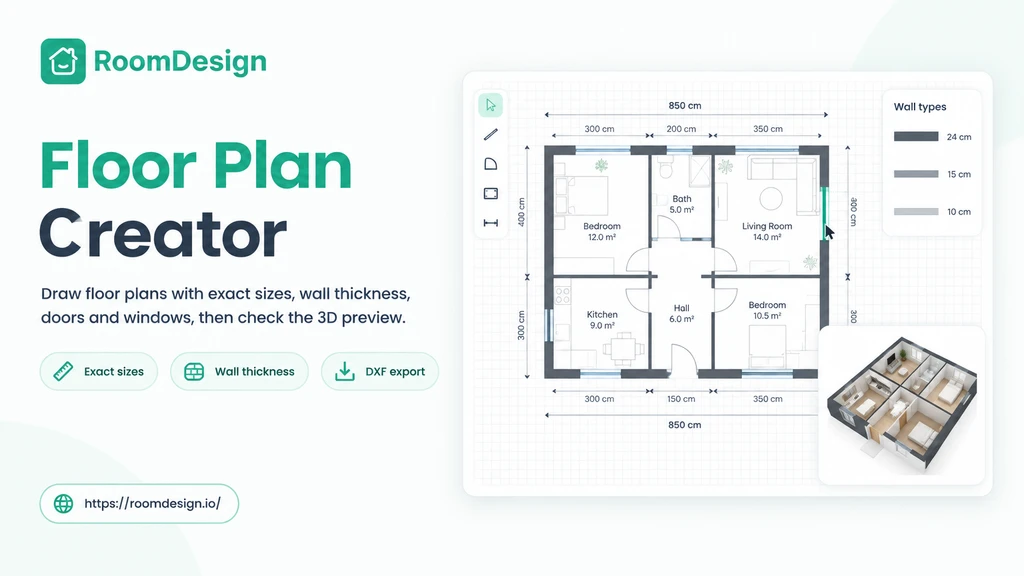
Make precise floor plans in RoomDesign with exact sizes, wall thickness, doors, windows, and a 3D preview.

Floor Plan Creator - Free Draw Floor Plans With 3D Preview

RoomDesign's Floor Plan Creator is a real editor for drawing walls, doors, and windows at exact sizes. Set wall thickness, add layers, and export to DXF.

Floor Plan Creator - Free Draw Floor Plans With 3D Preview

What Is Floor Plan Creator?

Floor Plan Creator is a browser editor for drawing floor plans by hand. Place walls and set their thickness, drop in doors and windows, and type exact dimensions instead of guessing. Undo any step and check 3D preview. Continue with AI Floor Plan Generator and Floor Plan Designer.

What Is Floor Plan Creator?

Why Sketching Floor Plans by Hand Costs You Time

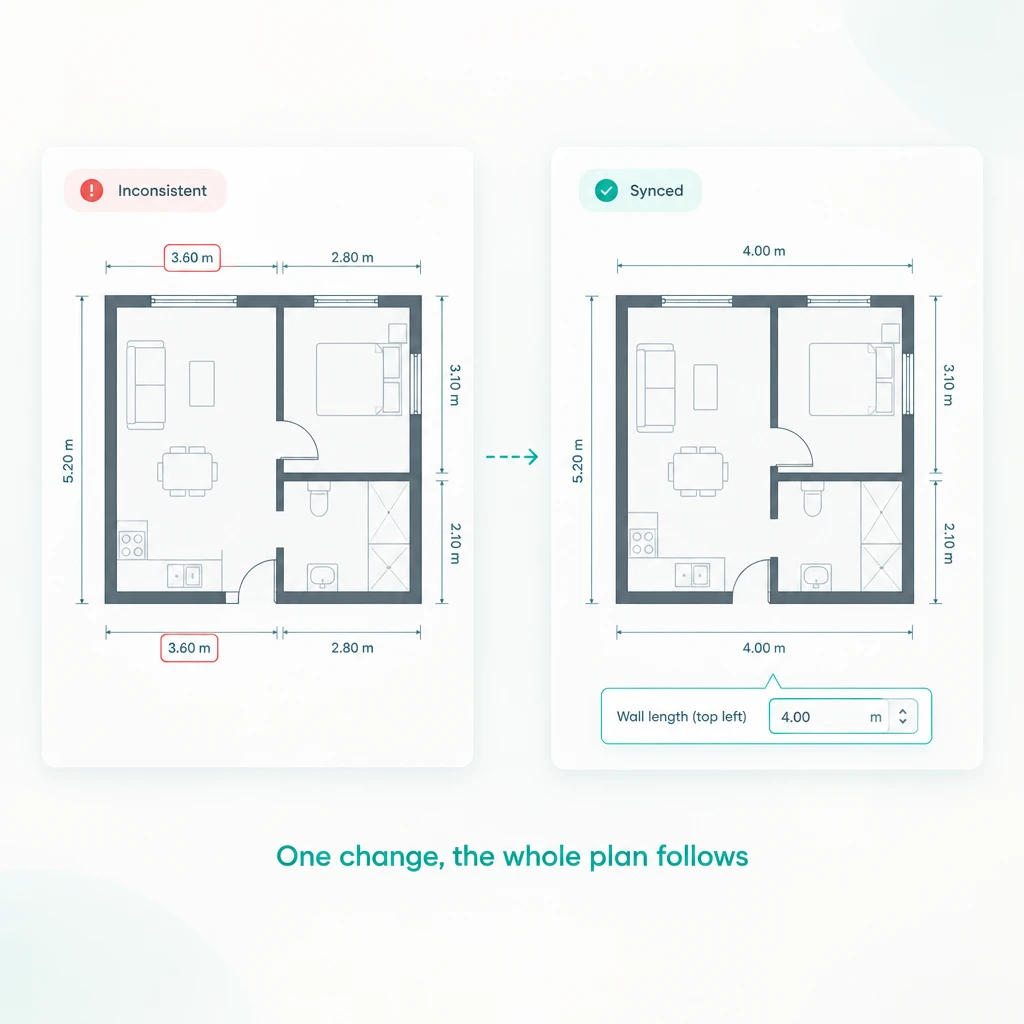
Graph paper goes wrong the moment a wall length changes. You redraw the outline, the doors drift, and the dimensions stop matching the room. A layout that looks fine flat turns out unworkable once you stand in it. Floor Plan Creator on RoomDesign keeps walls, sizes, and layers in one editor.

Why Sketching Floor Plans by Hand Costs You Time

Key Features of Floor Plan Creator on RoomDesign

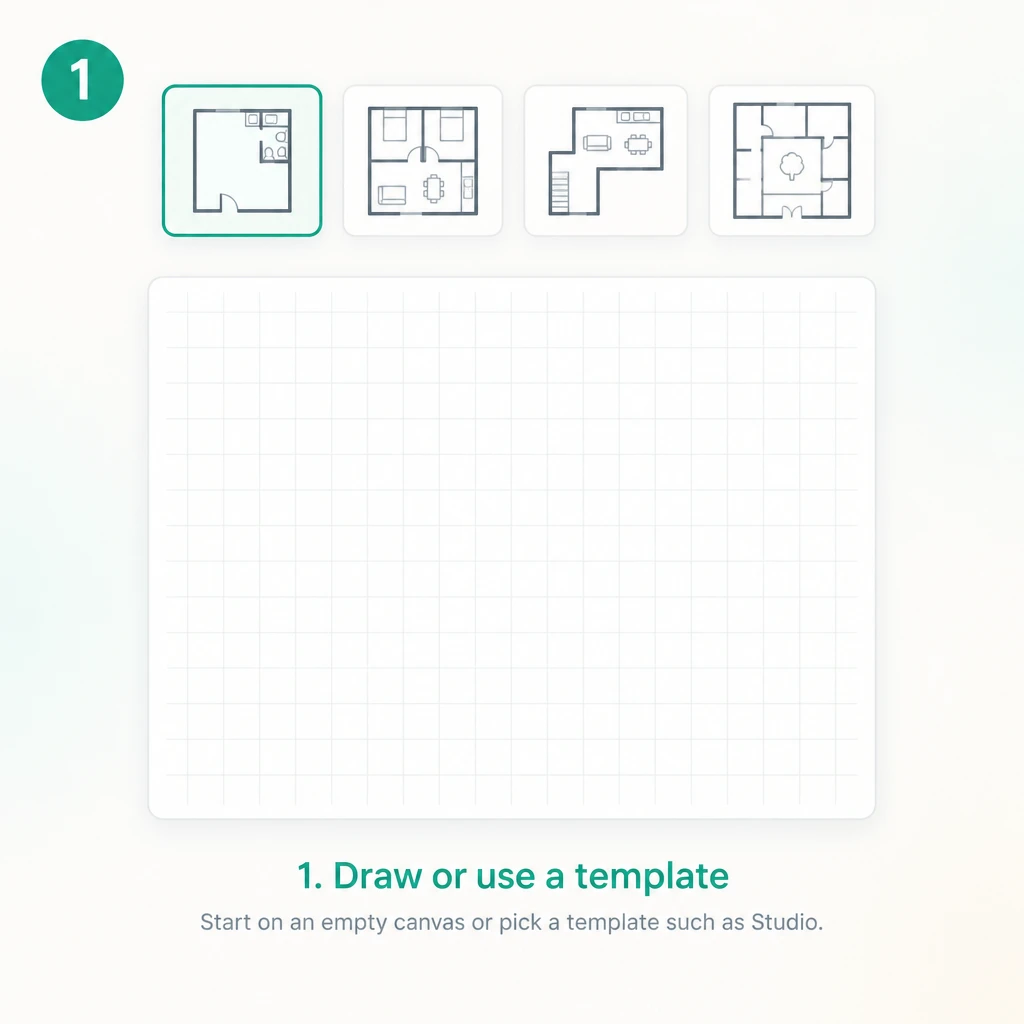
  • Start From a Template

    Choose a ready layout such as Studio, 2-Bedroom Flat, L-Shaped Loft, or Courtyard House and adjust every wall, or begin on an empty canvas.

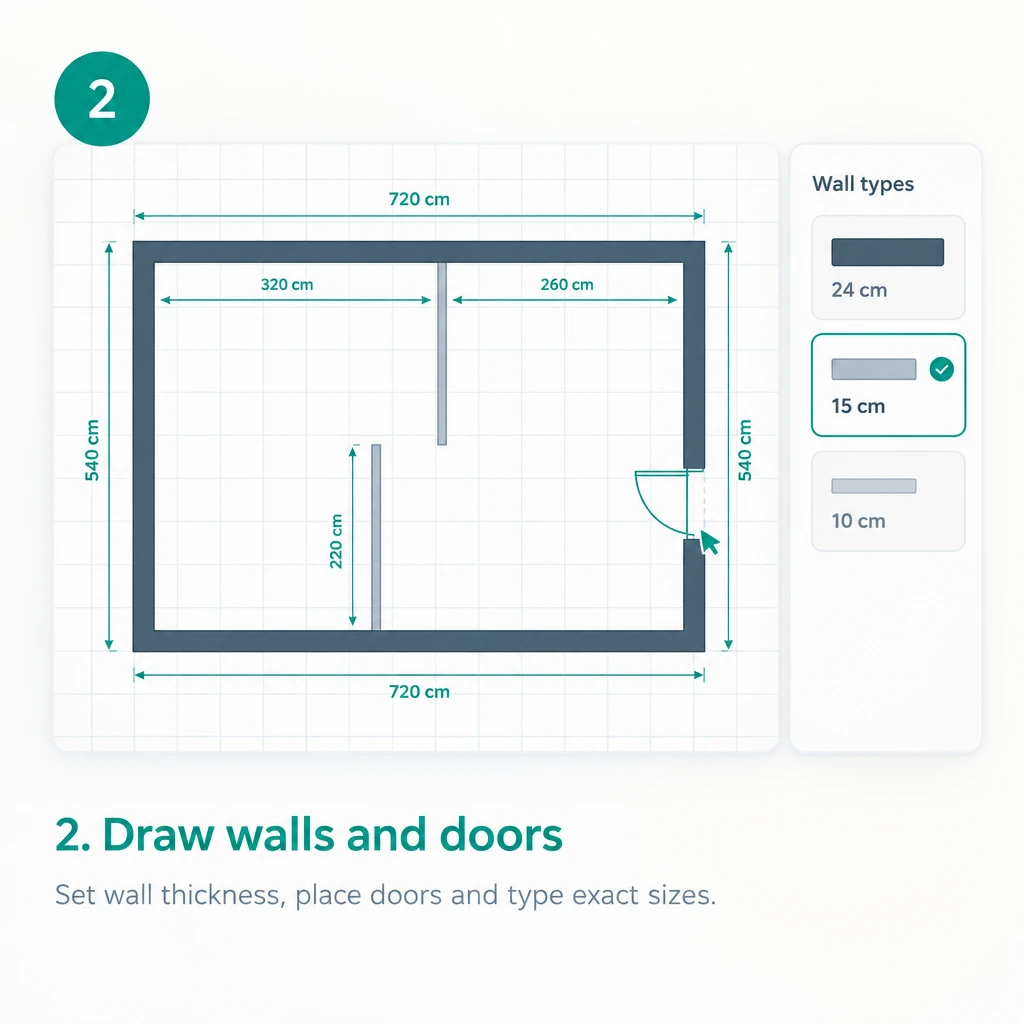
  • Set Wall Thickness and Sizes

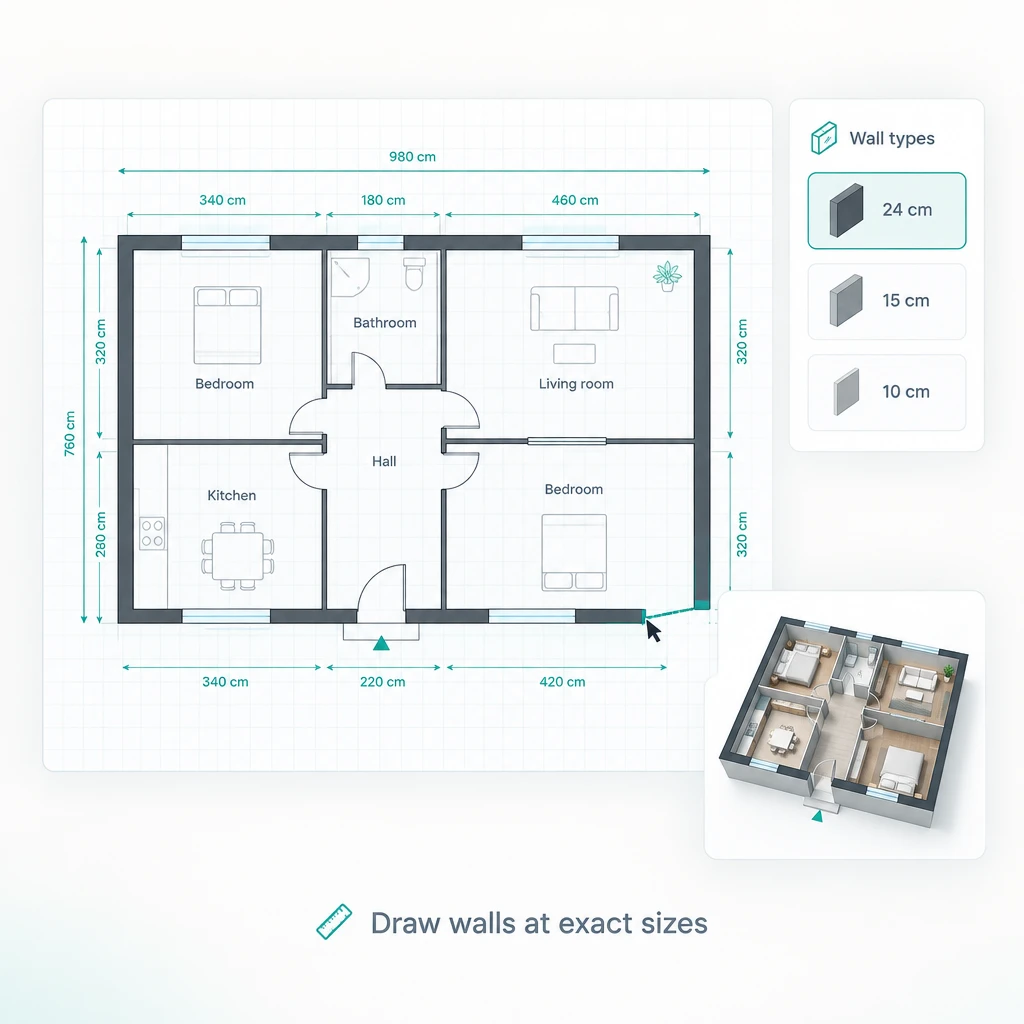
    Choose exterior, interior, or partition walls at 24, 15, or 10 cm, type exact wall lengths, then place single, double, or sliding doors.

  • Export PNG, JPG, or DXF

    Download your finished plan as a PNG or JPG image for sharing, or as a DXF file that CAD software opens, so nobody has to redraw anything.

Floor Plan Creator Use Cases

Floor Plan Creator on RoomDesign supports early planning across residential, renovation, and commercial work, helping users turn measured space into a layout they can keep editing.

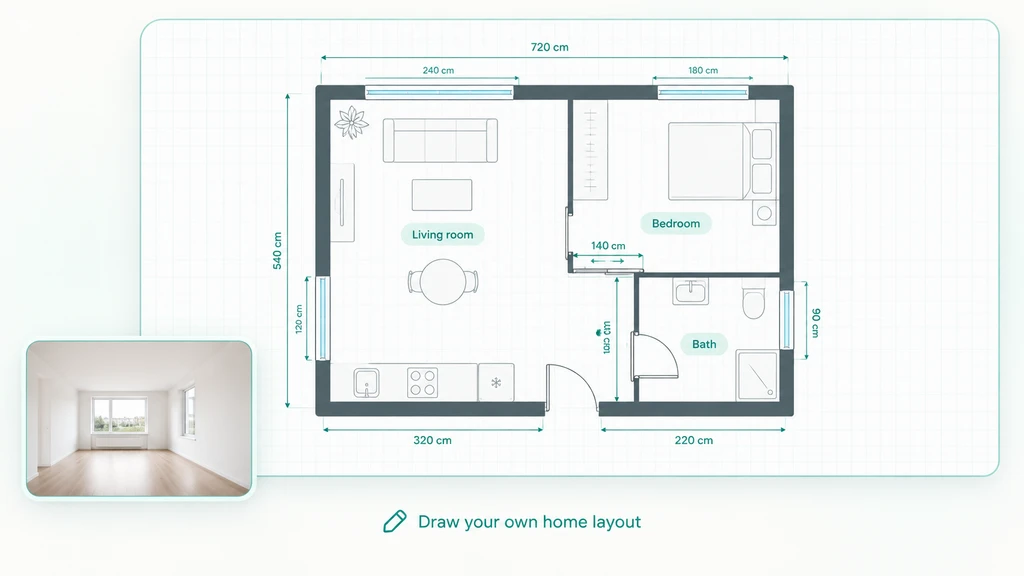
Draw Your Own Home Layout

Measure rooms and draw the outline yourself, then test furniture sizes against real wall lengths before you buy or move anything in the flat.

Draw Your Own Home Layout

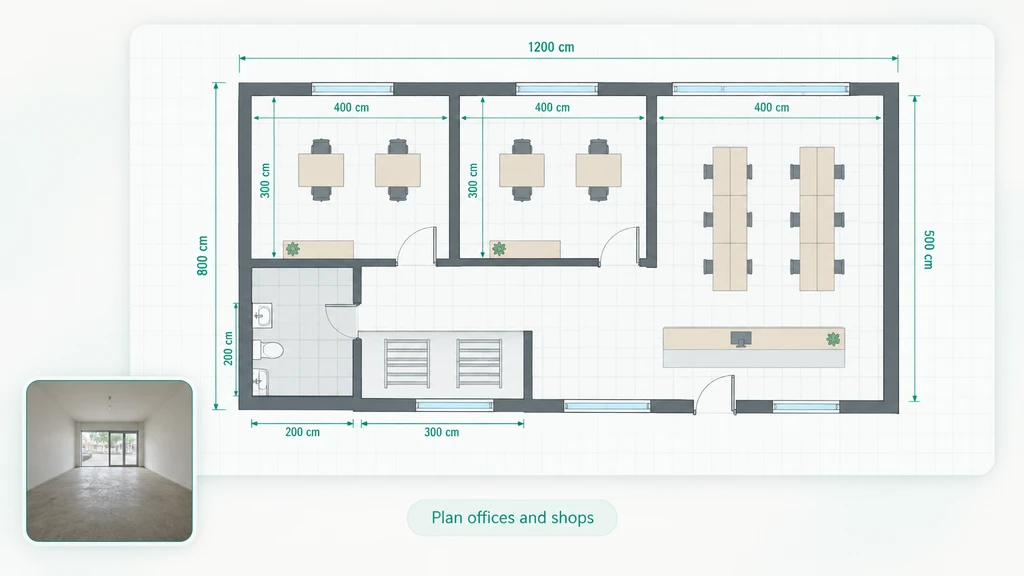
Plan Offices and Shops

Lay out partitions, desks, counters, and door swings for an office or shop, and export the drawing as DXF when a fit-out team needs the file.

Plan Offices and Shops

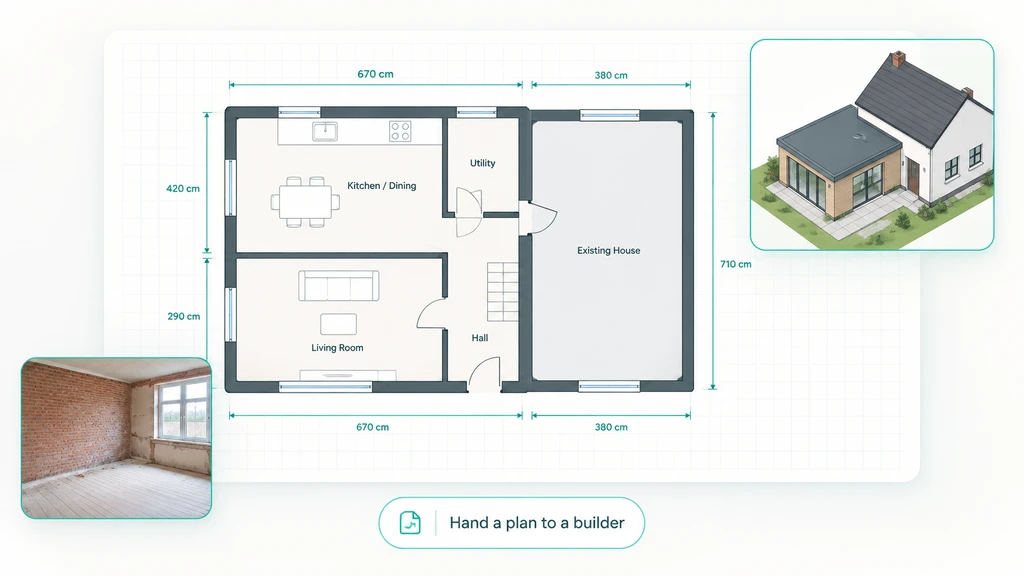
Hand a Plan to a Builder

Sketch a renovation or extension, check the proportions in 3D preview, and pass the finished plan on to a builder or designer to work from.

Hand a Plan to a Builder

How to Use Floor Plan Creator

  1. Step 1: Draw or Use a Template

    Step 1: Draw or Use a Template

    Open the editor and draw your own plan from an empty canvas, or pick a ready template such as Studio when the space follows a common shape.

  2. Step 2: Draw Walls and Doors

    Step 2: Draw Walls and Doors

    Draw each wall, set its thickness, then place doors and windows and type exact dimensions so every room matches your real measurements.

  3. Step 3: Preview and Export

    Step 3: Preview and Export

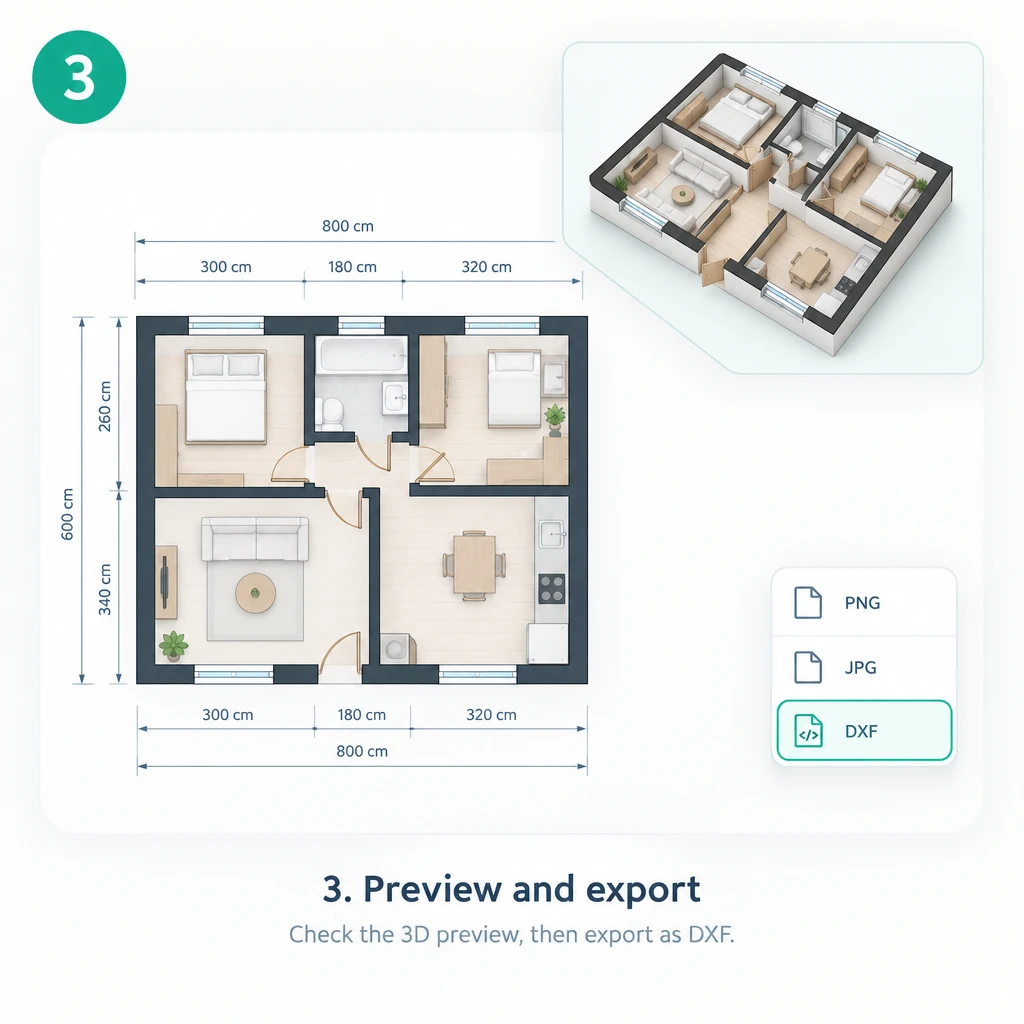
    Switch to the 3D preview to check proportions, use undo when a change does not work, then export your drawing as DXF when CAD needs it.

Ready to Draw a Floor Plan With Exact Sizes Online?

RoomDesign gives you a real editor for drawing walls, doors, and windows at exact sizes. Set thickness, keep work on layers, undo any step, check 3D preview, and export as DXF. Start free.

What Users Say About Floor Plan Creator

Jessica Morrison avatar

Jessica Morrison

Homeowner

“We bought an older flat where no wall was truly square. Floor Plan Creator let me type the real wall lengths one at a time, set thickness so the party walls read correctly, and undo mistakes instead of starting over. I test furniture sizes before we buy, and 3D preview settled the kitchen argument in a single evening.”
Daniel Brooks avatar

Daniel Brooks

Real Estate Agent

“Listings without a plan lose buyers, and drawing one used to eat a whole day. Now I open Floor Plan Creator, set wall thickness, place the doors and windows from the floor survey, and type exact room sizes. The 3D preview catches awkward circulation before photos go live, and enquiries improved within a month.”
Amanda Chen avatar

Amanda Chen

Interior Designer

“Clients change their minds, and every change used to mean a fresh sketch. Floor Plan Creator keeps walls, dimensions, and layers in one editor, so I adjust one number and the plan follows. Undo means I can try a bolder layout in front of a client without risking the work. It cut my concept stage to an hour.”
Ryan Patel avatar

Ryan Patel

Architect

“Early massing talks need a plan fast. Floor Plan Creator gives me a real drawing editor with wall thickness, exact dimensions, and clean door and window placement. I use layers to separate structure from furniture, and 3D preview shows proportions before anything goes near CAD. Fewer revision rounds reach the client.”
Emily Rodriguez avatar

Emily Rodriguez

Small Business Owner

“We leased a small office and had to decide on partitions. Floor Plan Creator let me draw the walls to real sizes, set thickness for the new partitions, and undo the options that did not work. Seeing the layout in 3D preview made the choice obvious, and the fit-out quote came back without surprise orders.”
Marcus Lee avatar

Marcus Lee

Property Developer

“I test dozens of unit layouts before committing. Floor Plan Creator turns wall lengths and openings into a clean plan, and layers keep the structure readable while I move furniture around. Undo and 3D preview let my team compare options in the same sitting. It replaced the rough sketches they used to hand me.”

Frequently Asked Questions About Floor Plan Creator

Floor Plan Creator offers free usage on RoomDesign, so you can draw walls, set thickness, and place doors and windows before paying anything. Larger projects or extra capacity may sit behind a paid tier, so check the current plan details on the site before you start a long run of drawings. Nothing you drafted is lost if you upgrade later.

Yes. Floor Plan Creator runs online in the browser, so it works on desktop, tablet, and mobile with nothing to install. You can draw walls and type dimensions on a phone while standing in the room, then finish the same plan on a laptop. For long drawing sessions a larger screen and a mouse stay far more comfortable to work with.

You set the unit yourself and Floor Plan Creator keeps every wall length, dimension line, and room size consistent in it. Switch between meters and feet and the numbers you already typed are converted rather than lost, so a plan drawn from a metric survey still reads correctly for a contractor working in imperial measurements.

Treat plans from Floor Plan Creator as a planning aid rather than a construction document. Wall thickness, dimensions, and openings are only as accurate as what you enter, and output does not account for structure, services, or local code. Have a licensed professional verify dimensions, load paths, and safety before anything is built or submitted.

Plans you draw with Floor Plan Creator from your own measurements are yours to use for client work and internal projects, subject to the terms attached to your RoomDesign account. Make sure any reference material, names, or logos you bring into a plan are yours or properly authorized, and review licensing terms before publishing plans commercially.

Floor Plan Creator may receive room measurements and written notes about private properties and client projects. Check the current RoomDesign privacy terms for storage and retention before entering confidential information. Remove names, addresses, and other sensitive data from your drawings when they are not needed for the plan to make sense.

Floor Plan Creator exports your drawing as DXF, the format CAD software reads, so a designer, engineer, or builder can open it directly instead of redrawing your plan by hand. Wall thickness, room sizes, and door and window positions carry over as geometry. Check the export options in the editor, since availability can depend on your plan.